
Configure Career Plan review, sign-off, and naming to match your state or district's planning requirements, with ready-made starting templates for seven states.
Every state defines its own version of a graduation plan, an Individual Career and Academic Plan (ICAP), or an Individualized Learning Plan (ILP), and no two look exactly alike. A plan that works as a daily planning tool for students also has to hold up as documentation when a district needs to show it met a state requirement. Career Plan configuration lets a district shape the plan around its own requirements instead of adapting its process to a generic one.
Why One Plan Format Doesn't Fit Every District
A district in a state with a formal ICAP requirement needs signatures, a review schedule, and a plan name that matches state language. One without that requirement might just want students building a plan with no extra process attached. Career Plan supports both ends of that range, and everything in between, through a Configuration Profile, a saved bundle of settings that a district or school admin builds once and applies to a school.
What You Can Configure
A Configuration Profile is built from six settings. Here's what each one actually does.
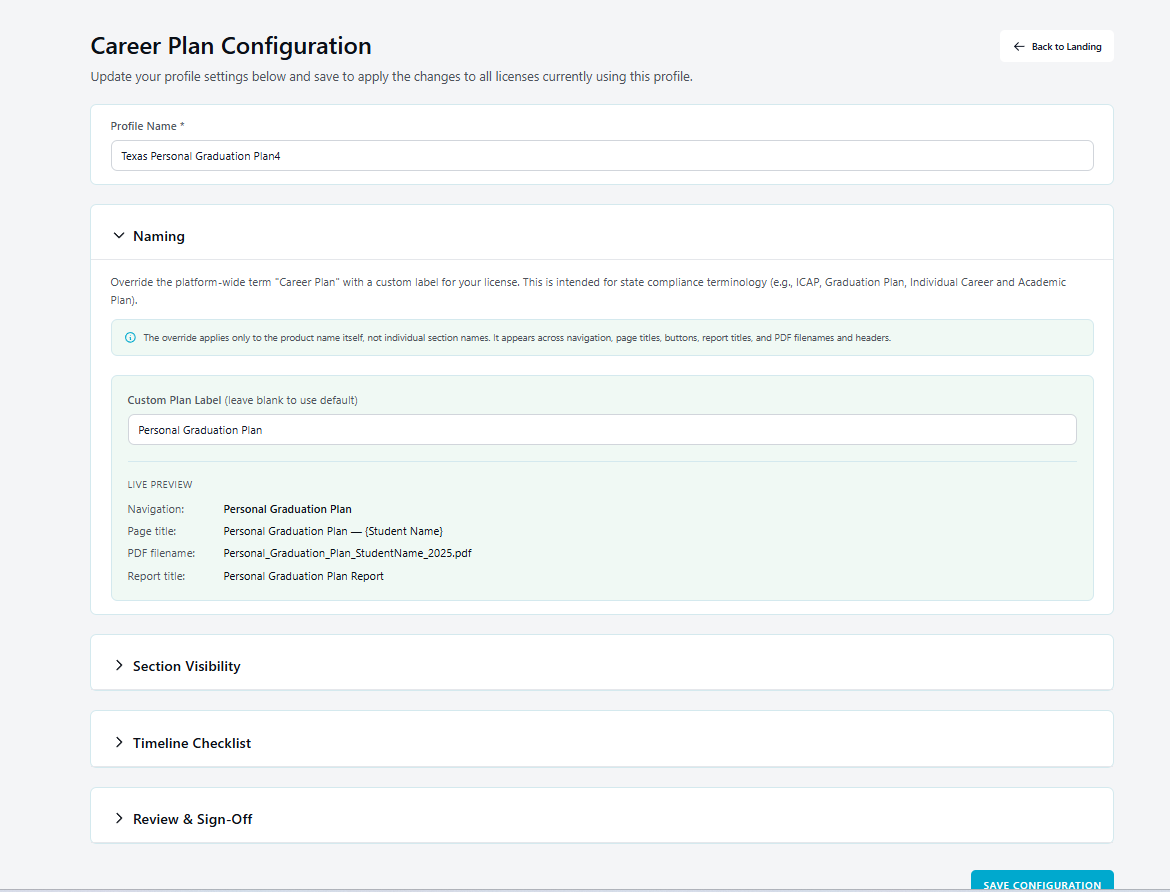
Plan Name
Keep "Career Plan," or rename it to match your state's official term: Individual Career and Academic Plan (ICAP), Individualized Learning Plan (ILP), Personalized Learning Plan, or whatever your district's requirement calls it. You can also include the student's name in the title, so a plan reads as "Jordan Lee's ICAP" instead of a generic label. There's no automatic lookup that fills this in based on your state; you type the term your district actually uses, since districts inside the same state sometimes use different language for the same requirement.
Visible Sections
Career Plan is built from nine sections: Career Exploration, My Goals, Course Plan, Experience Portfolio, Test Scores, Timeline Checklist, Awards and Honors, Select 3 Schools, and Select 3 Scholarships. All nine are on by default, so this is an opt-out choice, not an opt-in one. Turn off whichever sections don't match what your state or district asks students to document. A district under a requirement centered on coursework and career interests might turn off Select 3 Schools and Select 3 Scholarships if postsecondary application details aren't part of what the state is asking for. Hiding a section never deletes anything a student already entered there; it reappears if you turn the section back on.
Review Schedule & Locking
Set how often a plan gets reviewed. Many state ICAP and ILP requirements specify an annual review, though some ask for more frequent check-ins. You also decide whether a plan locks once it's submitted or once it's reviewed. A locked plan stays stable as documentation: a student can still read it, but can no longer edit it once it's been submitted or reviewed.
Student Signature
Turn this on if your state's requirement calls for the student to formally agree to what's in the plan, not just build it.
Parent or Guardian Acknowledgment
Set what kind of family involvement your requirement calls for: a light-touch acknowledgment, a formal approval, a confirmation, or a full e-signature. This is independent of the student signature setting, since some requirements ask for family sign-off without a student one, or vice versa.
Starting Point
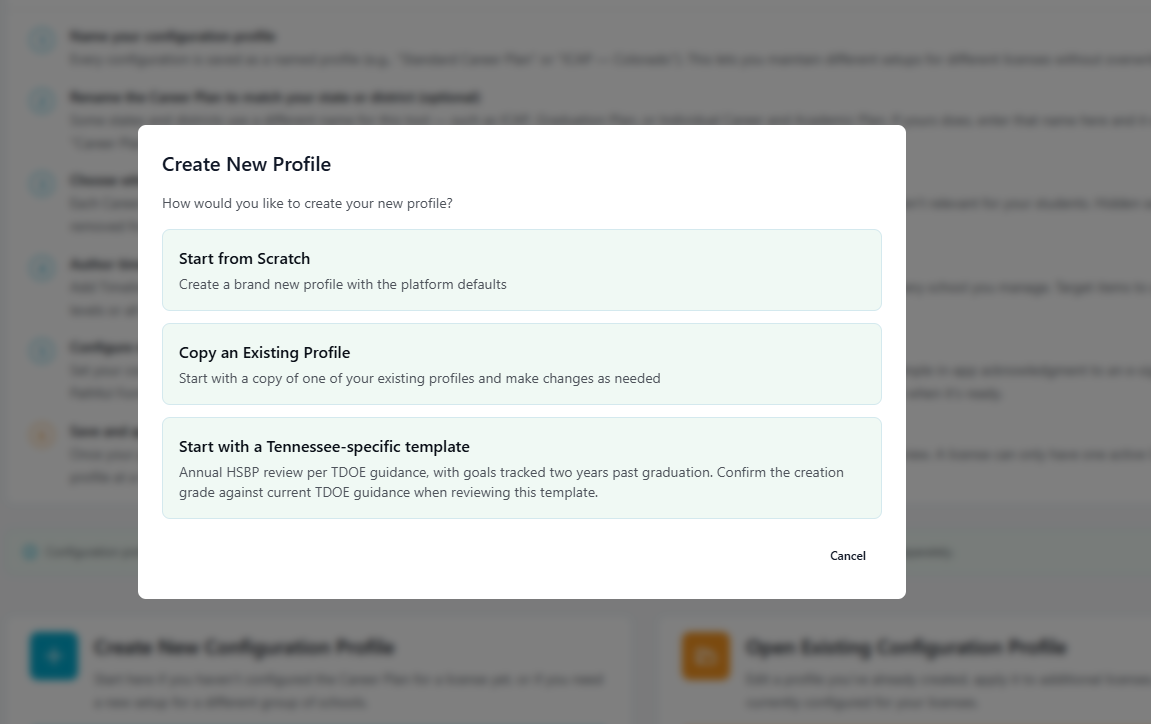
Build a profile from scratch, start from one of seven state templates, or copy a profile you or another school in your district has already built.
These settings live in System Configuration, an area only district and school admins can get into. If you're a counselor or teacher, you won't see this screen yourself, you'll just see the plan name, the sections, and the review rules your admin already chose. If something about your plan's setup needs to change, that's a conversation with your admin.
Start From a State Template, or Build Your Own
Seven states have ready-made starting templates built around their planning requirements: Tennessee, North Carolina, Texas, Maryland, South Carolina, Nevada, and Minnesota. Starting from one of these gives you a profile already shaped around your state's typical requirements, which you can still adjust from there.
One note if you're starting from the Maryland template: unlike Tennessee or Texas, Maryland's Blueprint standard doesn't name one single statutory plan document, so the plan name field won't come pre-filled the way it does for some other state templates. Enter whatever term your district already uses.
If your state isn't one of the seven, you're not starting from nothing. Build a profile from scratch, or copy an existing profile from another school or program in your district and adjust it. Either way, you're customizing the same set of controls: name, sections, review rules, and acknowledgment requirements.
Building a Profile for a State Without a Template
Building your own profile means translating a requirement you already have on paper into a plan name, section choices, a review schedule, and a signature or acknowledgment setting.
- Start with your state's actual language. Most ICAP, ILP, or graduation-plan requirements are documented somewhere your district already references. Read what it specifies: a name for the plan, how often it must be reviewed, what content it has to include, and whether it calls for a student and/or parent signature.
- Set the plan name first. This is usually the most direct translation. If your state calls it an ICAP, name the plan ICAP.
- Map required content to sections. Go through what your state actually asks for and match each item to one of the nine sections. Colorado's ICAP is a good example of what this looks like in practice: state law (C.R.S. 22-2-136) requires every student's plan to include a career planning and guidance component and a portfolio, developed with the student's parent or guardian and coordinated by school counselors starting in middle school. Translated into Career Plan sections, that points most directly at Career Exploration, My Goals, Course Plan, and Experience Portfolio, with parent or guardian involvement handled through the acknowledgment setting. If the law doesn't mention test scores, schools, or scholarships, there's no reason to turn those sections on.
- Set the review schedule to match your requirement's audit expectations. If your state specifies an annual review, set it to annual rather than defaulting to something more or less frequent.
- Match signature and acknowledgment settings to what your requirement actually says. If it's specific about a parent signature, turn on e-signature. If it only implies family awareness without specifying a signature, a lighter acknowledgment setting may be the better fit, since it documents involvement without adding more process your requirement doesn't call for.
- Save the finished profile so it can be copied. Once one school in your district has built a profile that matches your state's requirement, every other school in the district can copy it instead of repeating this process.
If you're unsure how a specific requirement should map to these settings, that's a good conversation to have with your Pathful contact before you apply the profile to any students.
Setting It Up, Step by Step
- Open System Configuration and select Career Plan. (Configuration lives in System Configuration and can only be set up by a district or school admin.)
- Create a Configuration Profile. Start from scratch, from one of the seven state templates, or from a copy of an existing profile.
- Name the plan. Keep "Career Plan," or rename it to your state's official term, with the option to include the student's name in the title.
- Choose which sections students see.
- Set your review and sign-off rules: the review schedule, whether plans lock after submission or review, whether students sign, and whether a parent or guardian acknowledgment is required.
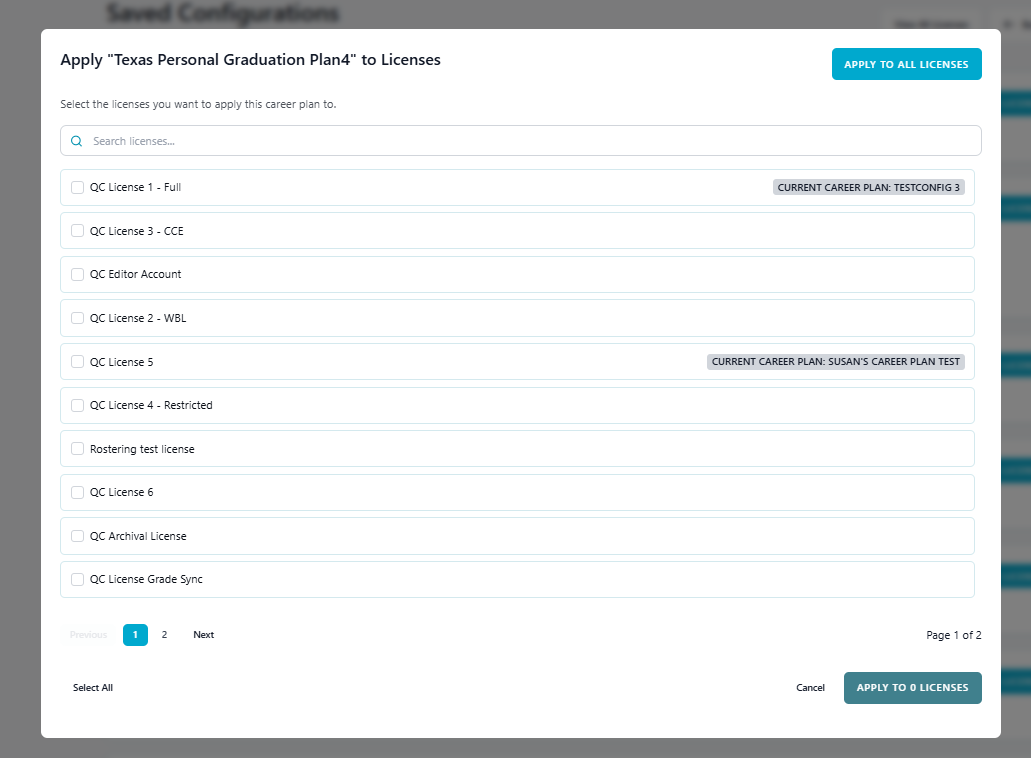
- Apply the profile to the license, Pathful's term for your school or district's account. These settings take effect only for the students on that license.
Nothing Changes Until You Apply a Profile
Nothing changes until an admin actually applies a profile to a license. Career Plan works exactly as it does today for every student until then, so there's no risk in building and reviewing a profile before you're ready to turn it on.
How Different Roles Use This
For District & School Admins
- Build a Configuration Profile that matches what your state or district actually requires, rather than a generic default.
- Start from a state template if you're in one of the seven, or copy a profile that's already working elsewhere in your district.
- Decide how formal review and sign-off needs to be, anywhere from an informal check-in to a fully documented, signed process.
- Apply a profile only to the students it should affect. Every other student keeps working the way they always have.
For Counselors
- Once a profile is applied, review submitted plans through the Manage Career Plans view in Counselor Center.
- Record your review and consent directly on a student's plan.
- Know what "locked" means for a plan on your caseload: submitted or reviewed, readable, no longer editable by the student.
- Check what your district requires from a parent or guardian before treating a plan as done. That can be anything from a simple acknowledgment to a full signature.
- Want the plan's name, sections, or review rules changed? That's a question for your district or school admin, not something a counselor can adjust directly.
Common Questions
Why did my student's plan mark itself complete? Every Career Plan now offers to complete itself automatically once a student reaches 100% progress. This happens for every district regardless of configuration, so it isn't specific to your state's requirements.
Why can't a student edit their plan anymore? If your district's configuration locks plans after submission or review, a submitted or reviewed plan becomes read-only for the student: they can still view it, but not change it. A counselor, admin, or staff member can unlock it for them from Manage Users if it needs to be reopened.
Why does a student see "submit for review" instead of just marking the plan current? That option appears once your district has turned on review and sign-off through a Configuration Profile. Before that setting is applied, students mark a plan current the way they always have.
If a section gets hidden, is the data in it gone? No. Hiding a section removes it from view but keeps everything a student already entered. Turning the section back on brings it right back.
Who do I ask if I'm not sure what our district's plan actually requires? Your district or school admin. They're the one who built the Configuration Profile, so they're the one who knows which settings your district applied and why.
Next Steps
If you're a district or school admin, log in and open System Configuration to see whether one of the seven state templates fits, or start building a profile from scratch.
If you're a counselor, teacher, or program lead and want something about your plan's setup changed (its name, sections, or review rules), that request goes to your school or district admin. They're the one with access to make it.
If you're new to Pathful, our team can walk you through how Career Plan configuration supports your program's specific planning and compliance requirements.
Was this article helpful?
Thanks for letting us know!

Keep exploring.
Can't find what you need?
Our support team is here to help you make the most of Pathful.