A first-week walkthrough of Counselor Center: what counts as a loggable activity, Quick Log vs. Bulk Entry, and how to fix a mistake without starting over.
It's 7:52 on a Tuesday. You meant to spend the first ten minutes of your day reviewing a 504 file. Instead, a student is in your doorway before the bell, upset about something that happened on the bus. By the time that conversation wraps up, the file review didn't happen, and neither did the two other things you'd planned to do before first period.
None of that shows up anywhere unless you write it down. Counselor Center gives you a place to capture it as it happens, so the record of your day doesn't depend on remembering it correctly by 3:30.
One practical note before you start: Counselor Center comes with your Pathful CRD license. There's no separate signup, no free-versus-paid decision to make, nothing to activate. If you can see Counselor Center in your navigation bar, you're already set up to use everything in it.
What actually counts as a loggable activity
If you're new to this, the instinct is to log the big stuff and skip the rest. Don't. Anything that takes real time and relates to your role counts, including:
- Individual counseling sessions and small groups
- Crisis interventions and unscheduled check-ins
- Parent and guardian calls or emails
- Teacher consultations about a specific student
- 504 and IEP meeting prep or attendance
- Schedule changes and course requests
- Testing coordination and proctoring
- Lunch duty, hallway supervision, and other coverage that lands on you
- Committee work, data review, and program planning
Coverage and committee work are the categories many people forget to log, and they're the ones ASCA reporting depends on most. A report built only from direct-service entries won't reflect the whole job.
Quick Log or Bulk Entry: which one to use
| Situation | Use this |
|---|---|
| Logging something that just happened | Quick Log |
| Catching up on a day or week you fell behind on | Bulk Entry |
| A recurring activity spanning several days | Either one, with "Repeat this entry across multiple days" checked |
Logging in real time with Quick Log
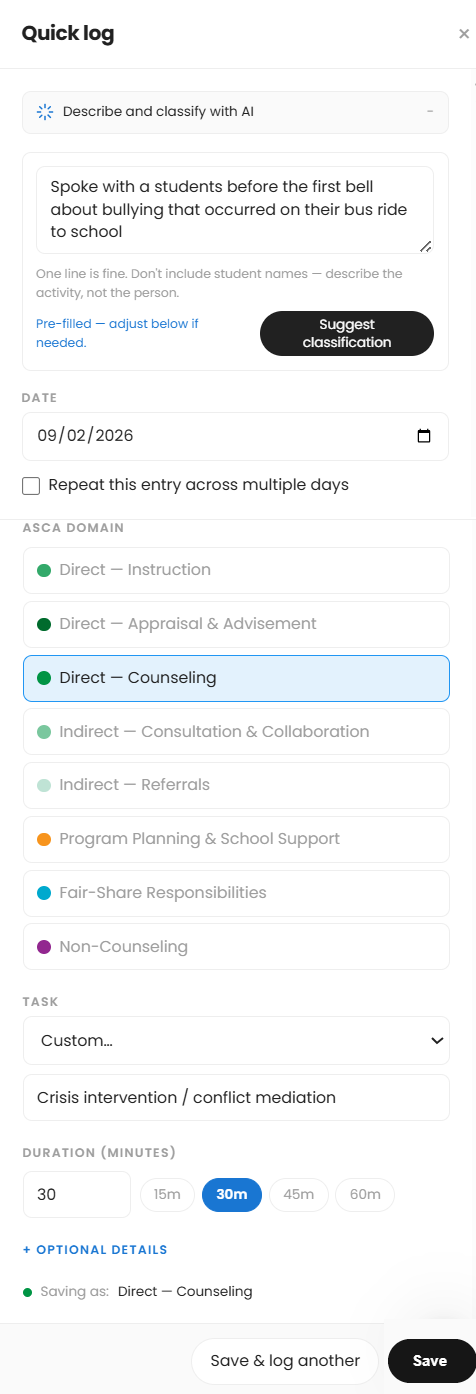
Quick Log is always available from the bottom right on any page in Counselor Center. Here's the Tuesday-morning version, step by step:
- Start the timer when the conversation begins, or skip it if you're logging something after the fact.
- When you're done, tap "Stop & log" to open Quick Log with the duration already filled in. If you skipped the timer, tap "+ Quick log" directly and enter the duration using the minute field or one of the 15m/30m/45m/60m shortcuts.
- Type what happened into "Describe and classify with AI," describing the activity rather than the student. The field itself instructs you not to include student names: "Spoke with a student before the first bell about bullying that occurred on their bus ride to school."
- Tap "Suggest classification" to pre-fill a domain and task, Direct—Counseling with a Custom task in this case, then adjust either one if it's not quite right.
- Save, or "Save & log another" if you have more than one entry from the same stretch of time.
The same Tuesday might generate three or four more entries just like it over the following hours: a parent call about missed homework, covering lunch duty for a colleague, and finally getting to that 504 file. None of these feels worth writing down on its own, but logged together, they show what the day actually costs you, rather than what it looks like from the outside.
Catching up on entries with Bulk Entry
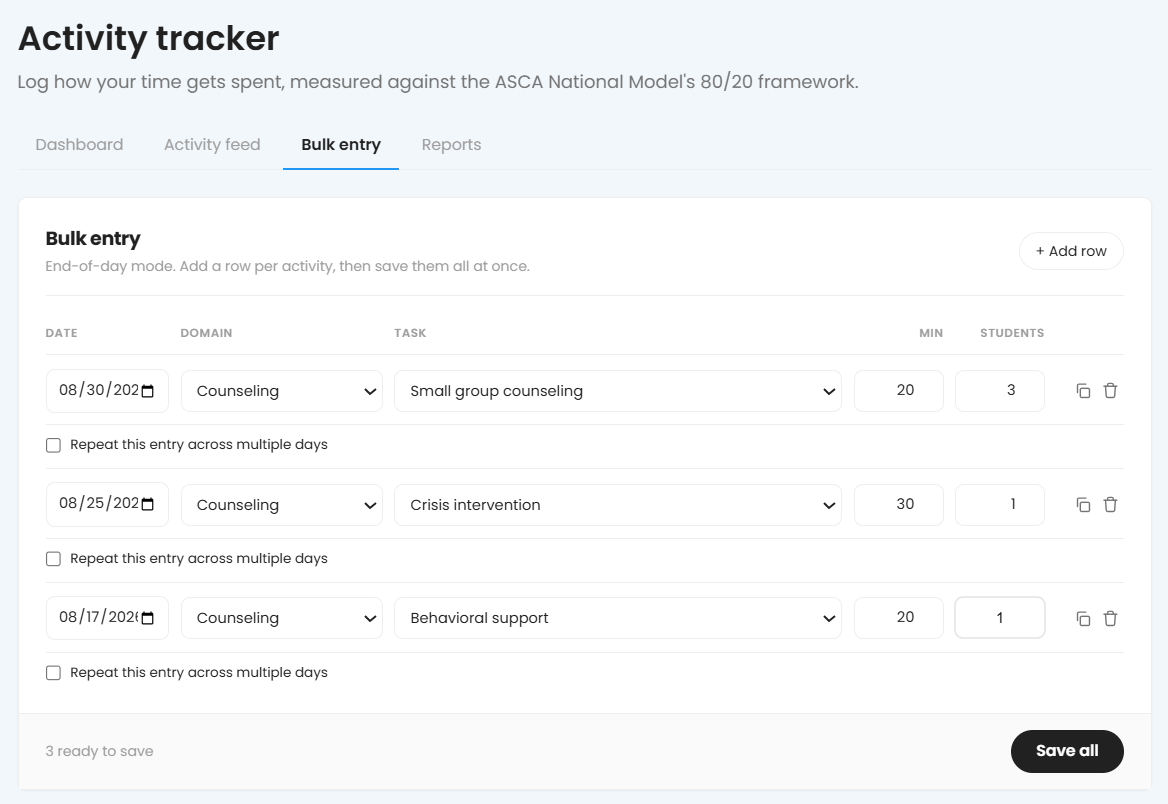
Quick Log defaults to today's date or later, so it won't help you catch up on Monday's parent meeting once it's Thursday. That's what Bulk Entry is for, found under Activity Tracker → Bulk entry:
- Go to Activity Tracker and select the Bulk entry tab.
- Add a row for each activity: date, domain, task, minutes, and number of students involved.
- Check "Repeat this entry across multiple days" on any row that covers more than one date; more on how that works below.
- Add as many rows as you need with "+ Add row."
- Save all of them at once.
Say it's Thursday and you never got around to logging Monday's parent meeting, Tuesday's crisis intervention, and Wednesday's small group. Bulk Entry lets you add all three at once, each correctly dated, rather than forcing you to either skip them or log them under today's date, which would throw off your weekly totals.
Setting up an entry that repeats across multiple days
"Repeat this entry across multiple days" is available in both Quick Log and Bulk Entry. Checking it reveals two more fields:
- Set an end date for the range you want covered.
- Choose a pattern: Weekdays only (Mon–Fri) or Every day.

Save. Each day within that range is saved as a separate entry, capped at 90 days.
Fixing a mistake
Logged something wrong, the wrong duration, the wrong date, a typo in the description? Go to Activity Tracker → Activity feed, open the entry, and edit it directly rather than deleting and starting over. This is separate from certification records, which work differently (employer and supervisor records have their own edit rules).
What a real first week looks like
A month of entries like these eventually lets you show an administrator what your day actually looks like, as long as the small stuff is included alongside the memorable sessions. A first week might look something like:
- Monday: Parent call (8 min), IEP meeting prep (25 min), lunch duty (30 min)
- Tuesday: Bus incident check-in (12 min), 504 file review (15 min), small group session (40 min)
- Wednesday: Crisis intervention (55 min), schedule change requests, three students (20 min)
- Thursday: College application help, drop-in (18 min), staff meeting (45 min)
- Friday: Testing coordination prep (30 min), parent email follow-ups (15 min)
Tomorrow morning, try logging the first three things that happen before 9am, whether on the calendar or not.
Was this article helpful?
Thanks for letting us know!

Keep exploring.
Can't find what you need?
Our support team is here to help you make the most of Pathful.