
How Pathful's accessible design and its UserWay integration give every learner a way in — text-to-speech, 50+ language translation, screen-reader support, dyslexia-friendly fonts, and more.
At Pathful, accessibility sits at the core of our mission. We believe everyone deserves equal access to the information and resources they need to find the career of their dreams — so we're committed to building an inclusive platform where every user can engage with our content and tools seamlessly. By continuously enhancing our accessibility features and holding to the highest standards, we work to remove barriers and empower every learner to learn, grow, and succeed.
Beyond designing an accessible platform and curriculum, Pathful integrates with UserWay to add another layer of accommodations — so every student can access Pathful in the way that works best for them.
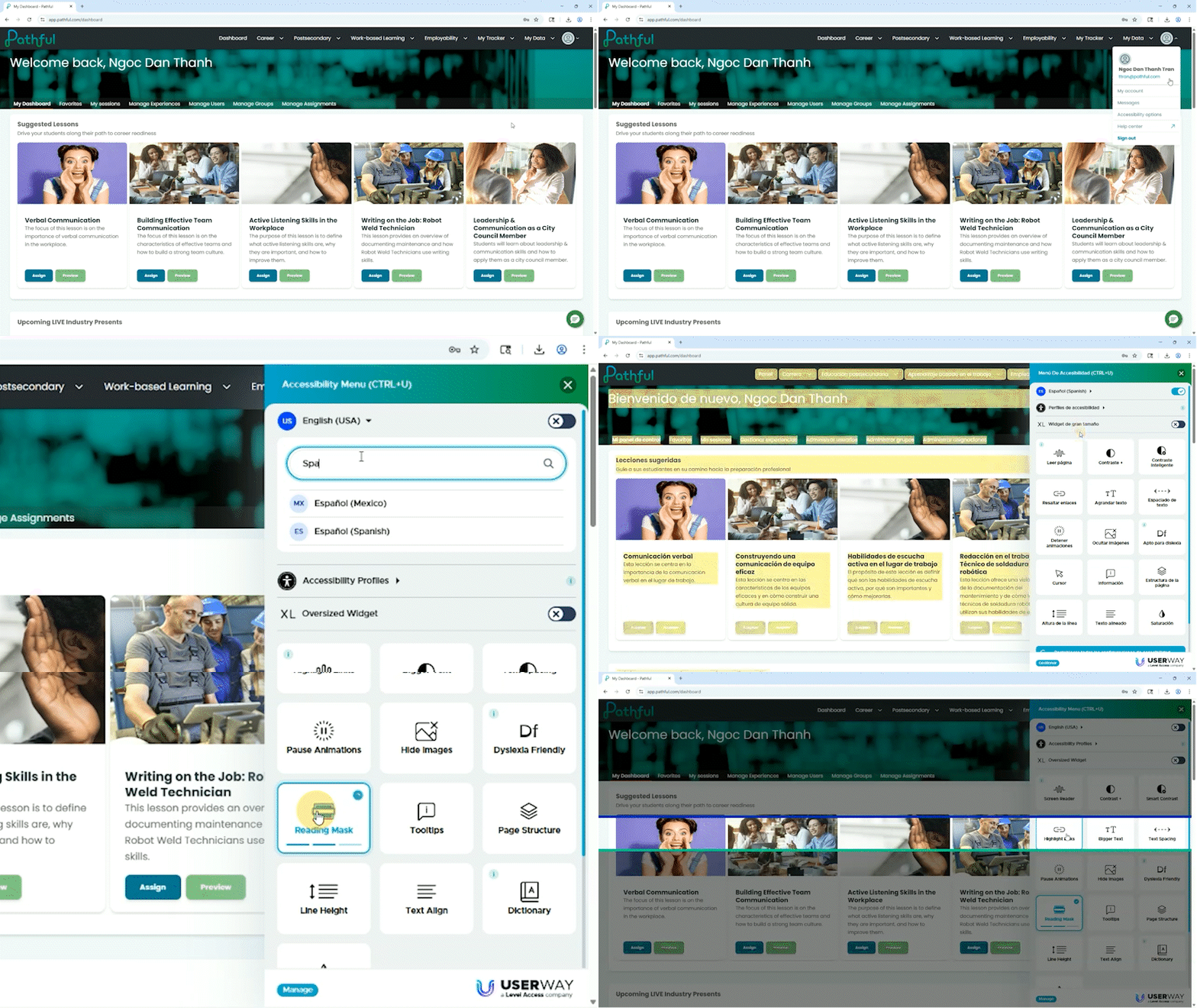
Key accessibility tools on Pathful
- Text-to-speech and image descriptions — text-to-speech reads the on-screen content aloud for students who find reading difficult or who prefer to learn by listening, while alt-text image descriptions give visually impaired users context for visual content.
- Text translation — students can translate Pathful's platform text and written content into more than 50 languages.
- Screen-reader optimization — UserWay keeps the platform fully compatible with screen readers, supplying descriptive text for images, buttons, and other elements so visually impaired users can understand and interact with everything.
- Text enlargement and spacing adjustments — users can increase text size and adjust line height, letter spacing, and word spacing, which is especially helpful for visual impairments or reading difficulties.
- Color contrast and dyslexia-friendly font — adjustable color schemes and contrast help users with visual impairments or color blindness, and a dyslexia-friendly font makes reading easier for students with dyslexia.
- Keyboard navigation and focus indicators — students can move through the site using keyboard commands alone, and focus indicators highlight the element in focus for those with mobility impairments.
- Cursor enhancement — an enlarged cursor and a reading guide help users track their place on the page and navigate more comfortably.
- Highlighting links — all clickable links can be highlighted at once, making them easier to spot and identify.
- Page-structure outline — a clear outline of headings and subheadings helps users understand the content hierarchy and move through a page efficiently.
- Accessibility statement and feedback form — an accessibility statement spells out Pathful's commitment to inclusion, and a feedback form lets users report issues or suggest improvements.
- Pause animations — users can pause animations, GIFs, and other moving elements that can distract or overwhelm, particularly for those with cognitive sensitivities or epilepsy.
To get more information on the UserWay widget and its available features please see this article.
Where to find it
Students and educators can turn these accommodations on at any time. Open your profile and click Accessibility options to launch the UserWay menu, then choose the settings that fit you best — the choices persist across the platform so the experience stays consistent every time you sign in.
Was this article helpful?
Thanks for letting us know!

Keep exploring.
Can't find what you need?
Our support team is here to help you make the most of Pathful.