
How Counselor Center tags every logged activity to one of the eight ASCA domains, then turns that history into a live dashboard and exportable reports you can hand to anyone who asks what you actually do all day.
Every counselor has answered some version of "What do you actually do all day?" Sometimes it's an administrator during a budget conversation. Sometimes it's a teacher wondering why you haven't "fixed" the disruptive student in their classroom. Sometimes it's a parent who only sees you in a meeting and assumes that's your whole job. The honest answer is long and scattered across a hundred small things, which is exactly why it's hard to say out loud, let alone prove.
Counselor Center is Pathful's tool for keeping that answer somewhere real. You log your day as it happens, and the tool turns that log into documentation, dashboards, and reports you can actually hand to someone.
The domains, defined
The ASCA National Model divides a counselor's time into eight shared categories, the same ones administrators and state reporting already use, and Counselor Center tags every activity you log the same way:
| Domain | What falls under it |
|---|---|
| Direct: Instruction | Classroom lessons |
| Direct: Appraisal & Advisement | Interpreting assessment results, academic planning, course selection, and postsecondary advising |
| Direct: Counseling | Individual counseling, small group counseling, crisis intervention, grief counseling, behavioral support, conflict mediation |
| Indirect: Consultation & Collaboration | Consulting with a teacher, meeting with a parent without the student present |
| Indirect: Referrals | Referring a student or family to an outside service or agency |
| Program Planning & School Support | Data analysis, program planning, committee work |
| Fair-Share Responsibilities | Duties every staff member takes a turn at because a school needs them to run safely, like lunch duty or hallway supervision |
| Non-Counseling | Work that lands on counselors specifically because there's nowhere else to put it, or because an administrator assumes counselors have the bandwidth, like 504 coordination, MTSS, or clerical work |
Logging time against a domain
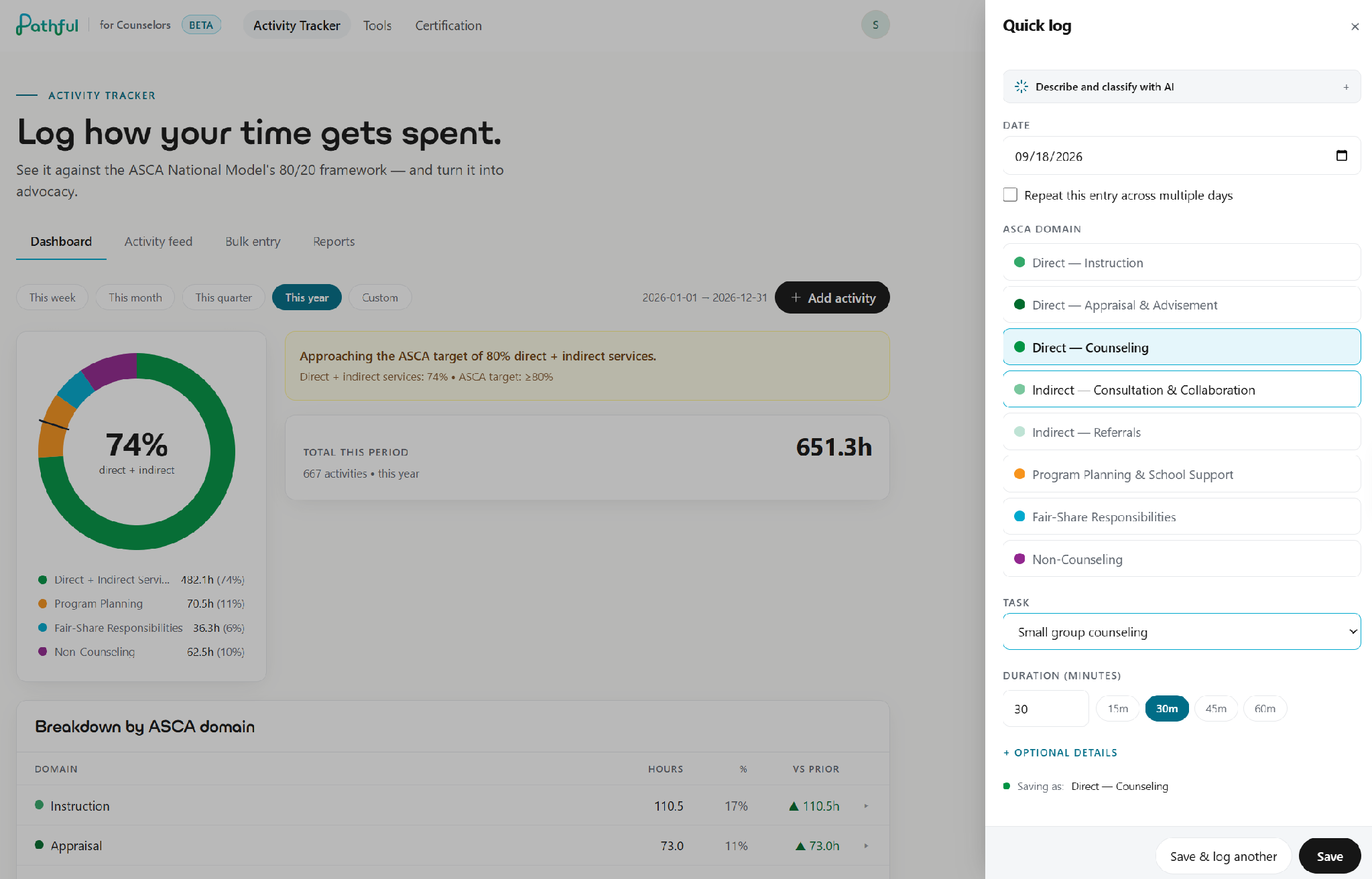
Every activity you record in Counselor Center, whether it's a quick note logged the moment something happens or a batch of entries you're catching up on at the end of the week, gets tagged to one of the eight domains above. Describe what happened, and Counselor Center can suggest a domain and task automatically, or you can pick one yourself. It stays editable after you save, so a domain you picked in a hurry between periods isn't locked in.
Picture a Tuesday morning: a bus-incident check-in before the bell, lunch duty coverage, and finally getting to a 504 file review at lunch. The check-in falls under Direct: Counseling. The lunch duty falls under Fair-Share Responsibilities, the same rotation every staff member takes. If a chunk of that same week was also spent running vision screenings because the school didn't have anyone else to assign it to, that's Non-Counseling, not Fair-Share. Three different domains in one day, and only one of them looks like "real counseling" to someone glancing at a calendar. Log all of it. None of it counts toward the reports below until it's in your Activity Tracker.
Where this shows up: the Activity Tracker dashboard
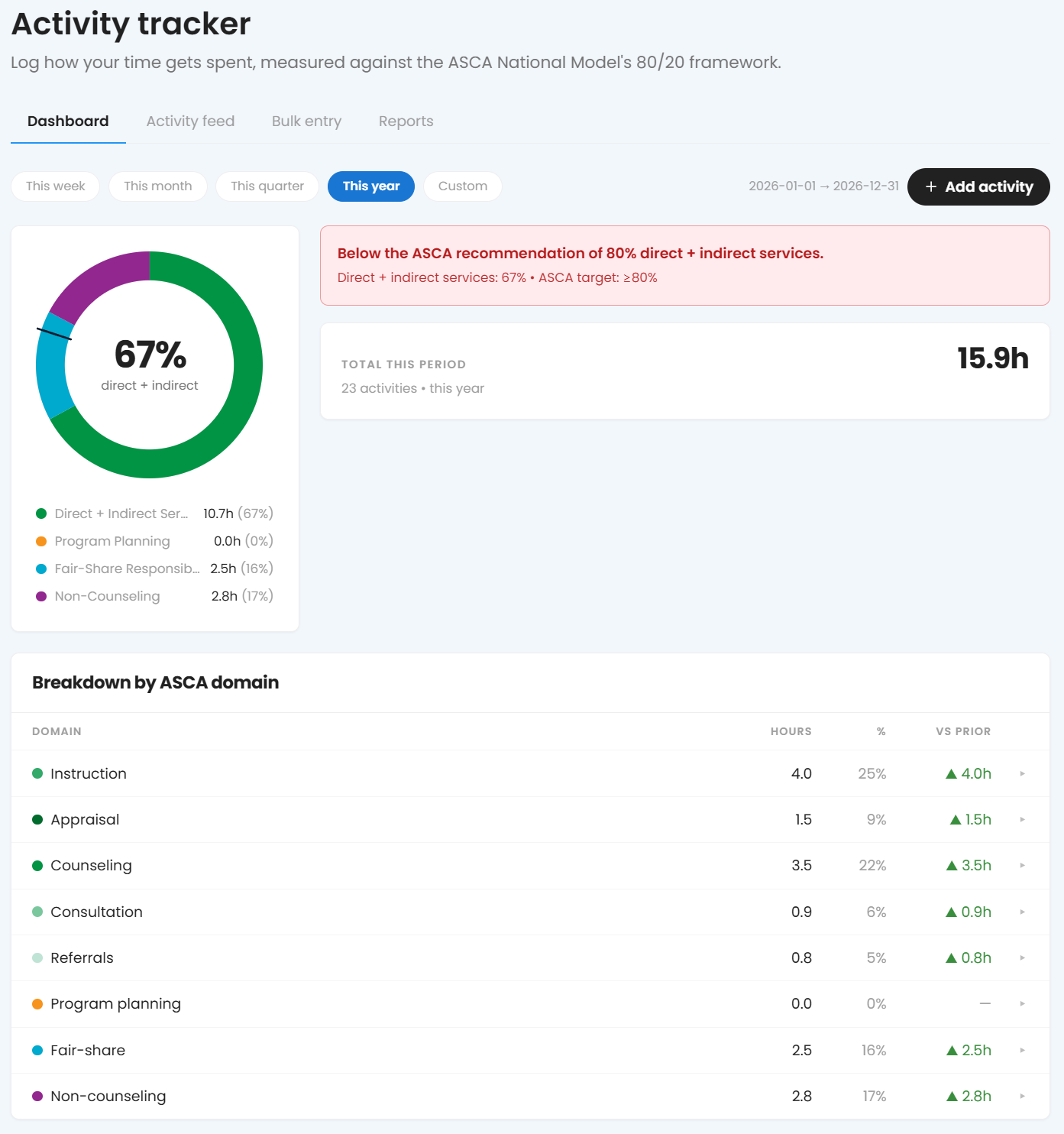
Open Activity Tracker and click the Dashboard tab to see this in real time, no report required. Pick a timeframe, this week, this month, this quarter, this year, or a custom range, and a donut chart splits your logged time into four groups: Direct + Indirect Services combined, Program Planning, Fair-Share Responsibilities, and Non-Counseling, each with hours and a percentage.
As your combined Direct + Indirect Services time approaches the ASCA target, the banner reflects that: a lighter note reading "Approaching the ASCA target of 80% direct + indirect services" while you're close, and a clearer flag once you drop below it: "Below the ASCA recommendation of 80% direct + indirect services." A counselor covering three fair-share duties a week and coordinating the testing schedule will watch that number dip, even during a semester full of real counseling work. The banner helps you see the problem you're already feeling. You have data to back up that your time is not being spent where it needs to be, with your students.
Below the donut chart, a "Breakdown by ASCA domain" table lists all eight domains individually, showing hours, percentages, and how each compares to the prior period. If your Non-Counseling percentage climbs from one semester to the next, that usually isn't your counseling load changing. It's an administrator handing you something new, worth naming the next time your caseload comes up in conversation.
Running a report
The dashboard updates live as you log. When you need something to actually hand to someone, the Reports tab, in the same Activity Tracker section, turns that history into a document:
- Go to Activity Tracker → Reports.
- Choose a report type.
- Select your date range.
- Run it, then export as a PDF if you need a document.
| Report | What it shows |
|---|---|
| Weekly Snapshot | A one-week view, for checking how a specific week went |
| Activity Summary | Daily, monthly, or quarterly logs, for full detail |
| ASCA Use of Time | The same 80/20 breakdown from the dashboard, for a specific date range, exportable as a PDF |
- A Weekly Snapshot pulled the Friday before a staff meeting, just to have real numbers on hand if caseload comes up
- An ASCA Use of Time report exported as a PDF ahead of a March budget conversation or for district reporting
- An Activity Summary run for a specific month when an administrator wants the itemized version instead of a percentage
Run a Weekly Snapshot for the week of September 8th, and you'll see it broken out plainly: a cluster of entries under the three Direct domains, a few more under Fair-Share Responsibilities, and a total that's probably higher than you'd guess if someone stopped you in the hallway and asked. A single week won't show a trend, but it's a fast gut check when you need one.
Activity Summary is the itemized version: every entry, every date. While the dashboard and ASCA Use of Time give you the percentage breakdown, Activity Summary is where you'd go to find the individual entries that make up that breakdown. ASCA Use of Time is the dashboard's live view turned into a document, a version that looks like a report once it's in someone's hands, rather than a mid-scroll screenshot.
Whether it's a parent, an administrator, or your own gut check, the answer to "what do you actually do all day" is already sitting in Counselor Center.
Was this article helpful?
Thanks for letting us know!

Keep exploring.
Can't find what you need?
Our support team is here to help you make the most of Pathful.