
A tool-by-tool guide to Counselor Center's six AI drafting tools, from Session Debrief to Letters of Recommendation, and what to check before anything goes out.
A five-minute conversation with a student can generate twenty minutes of paperwork afterward. A session note, maybe a parent email, maybe a follow-up reminder so nothing falls through the cracks next week. The conversation was the easy part.
Counselor Center's AI tools take a first pass at that paperwork. Most combine a short description with structured choices, a situation, a template, and a purpose, so the tool has enough to work with without you having to write the same context over and over. Six tools live here, each built for a different documentation task.
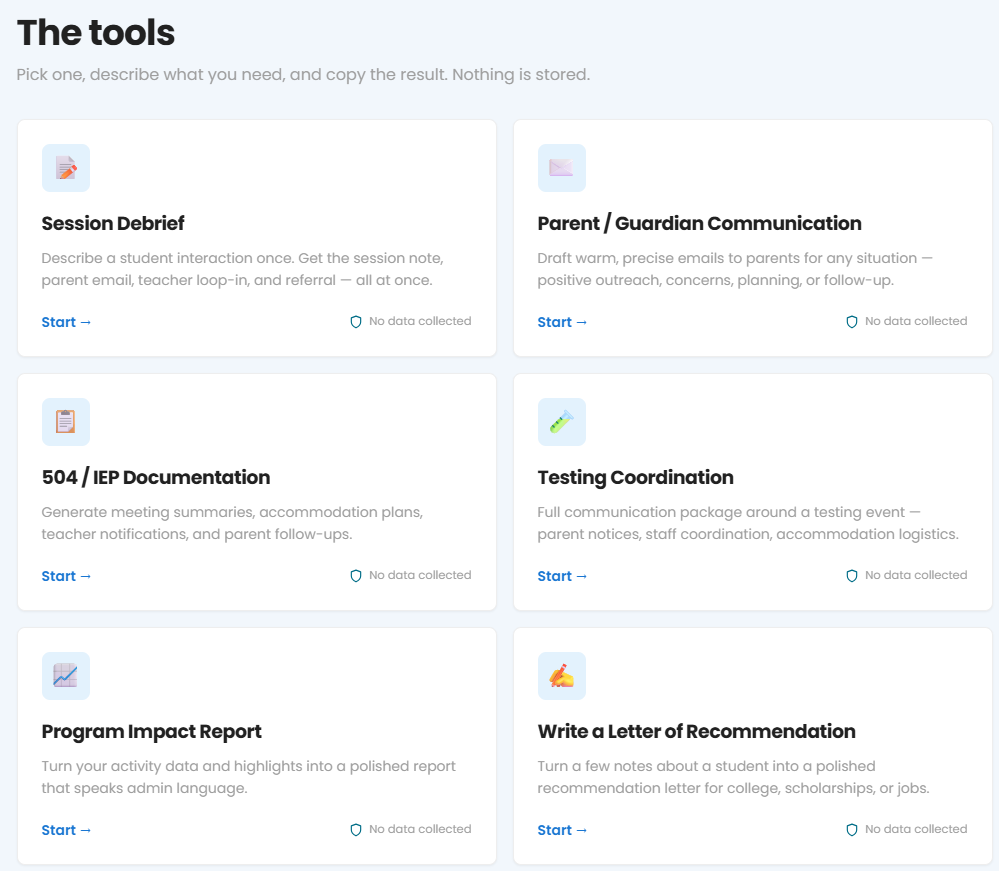
Session Debrief
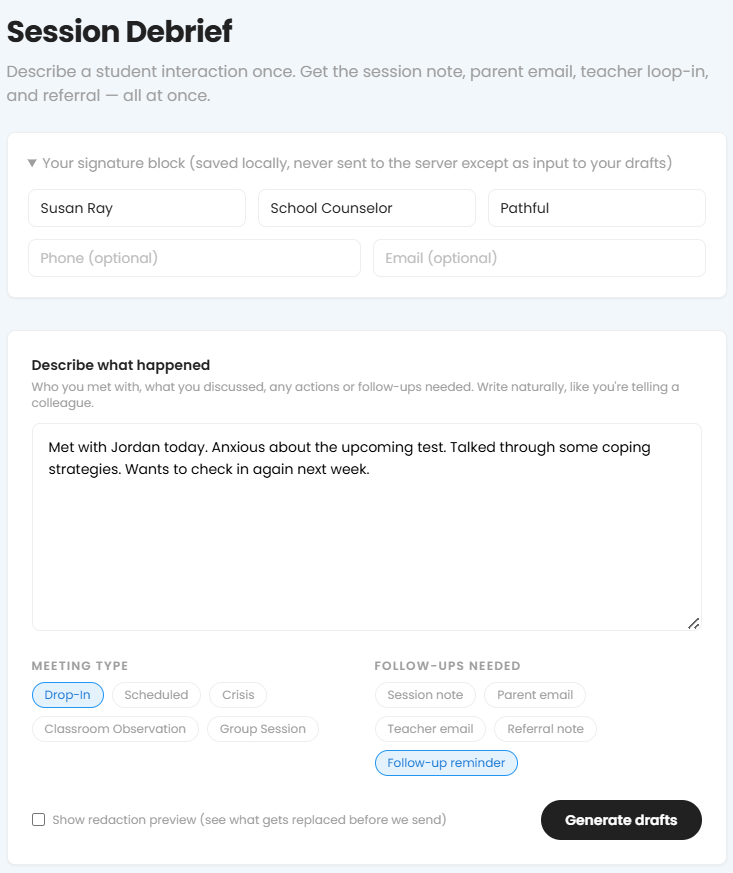
Describe a student interaction once. Get the session note, parent email, teacher loop-in, and referral, all at once.
How to use it
- Open Session Debrief.
- Describe what happened: "Met with Maya, 10th grade. She's been skipping 3rd period and seems withdrawn."
- Select the meeting type: Drop-In, Scheduled, Crisis, Classroom Observation, or Group Session.
- Select which follow-ups you need: Session note, Parent email, Teacher email, Referral note, or Follow-up reminder.
- Check "Show redaction preview" to see what gets replaced before the drafts are generated.
- Generate drafts.
A Drop-In usually just needs the session note. A Crisis meeting is where you'd check everything: note, parent email, and referral, since nothing should slip through in that situation.
Parent/Guardian Communication
How to use it
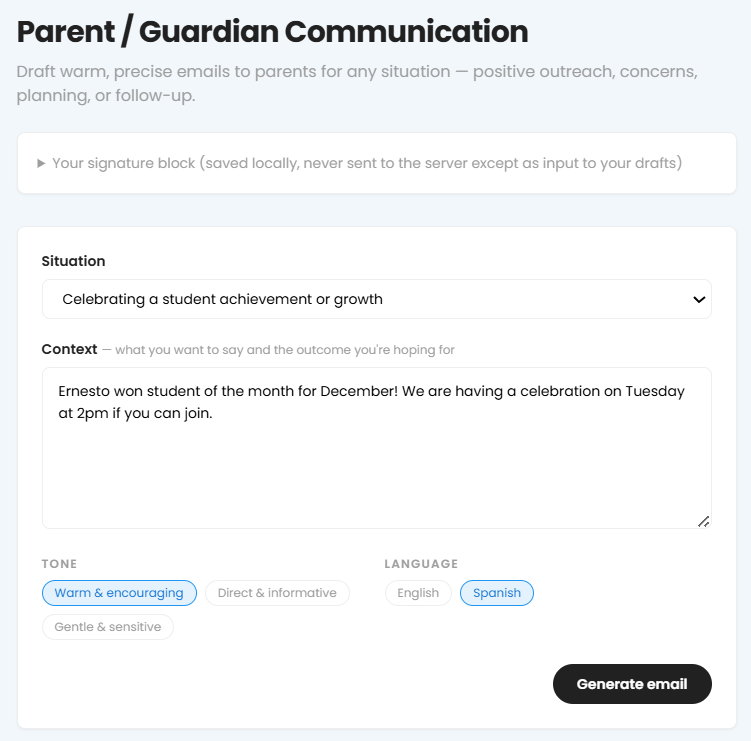
- Open Parent/Guardian Communication.
- Select a situation from the dropdown.
- Review the draft and add anything specific to your student or family.
- Select whether you need a translated version.
- Send.
Selecting "Behavioral or social changes noticed" drafts something careful, meant to flag a shift without alarming the family. Selecting "Celebrating a student achievement" drafts something much lighter. The situation you pick changes both the topic and the tone.
504/IEP Documentation
Generates meeting summaries, accommodation plans, teacher notifications, and parent follow-ups.
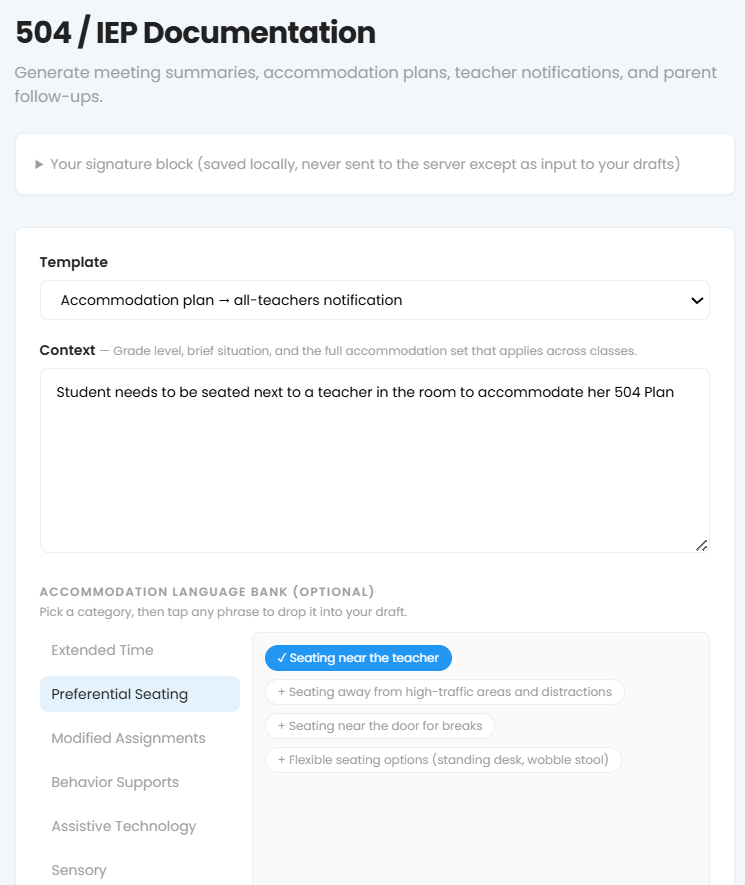
No free-text description here, you pick a template instead. Your signature block saves locally so you only set it up once.
How to use it
- Open 504/IEP Documentation.
- Choose a template from the dropdown.
- Fill in the student and meeting specifics that the template asks for.
- Review and generate.
The template list covers the lifecycle of a plan: an initial referral letter, annual reviews, re-evaluations, accommodation notices to one teacher or all of them, parent follow-ups, mid-year updates, transition summaries when a student moves from middle school to high school. There are more categories in the tool, Behavior Supports, Assistive Technology, Sensory, not yet explored, so this list isn't complete.
Testing Coordination
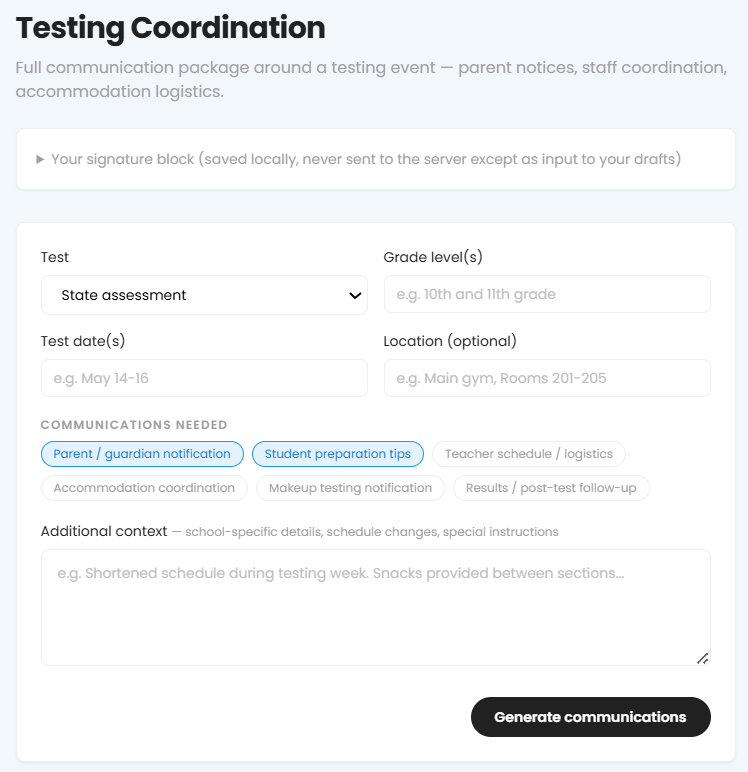
Full communication package around a testing event: parent notices, staff coordination, accommodation logistics.
Enter the test details once, then generate whichever of the six communications you actually need.
How to use it
- Select the test (State assessment, for example).
- Enter grade level(s), test date(s), and location if relevant.
- Select which communications you need: Parent/guardian notification, Student preparation tips, Teacher schedule/logistics, Accommodation coordination, Makeup testing notification, Results/post-test follow-up.
- Add any additional context.
- Generate.
Program Impact Report
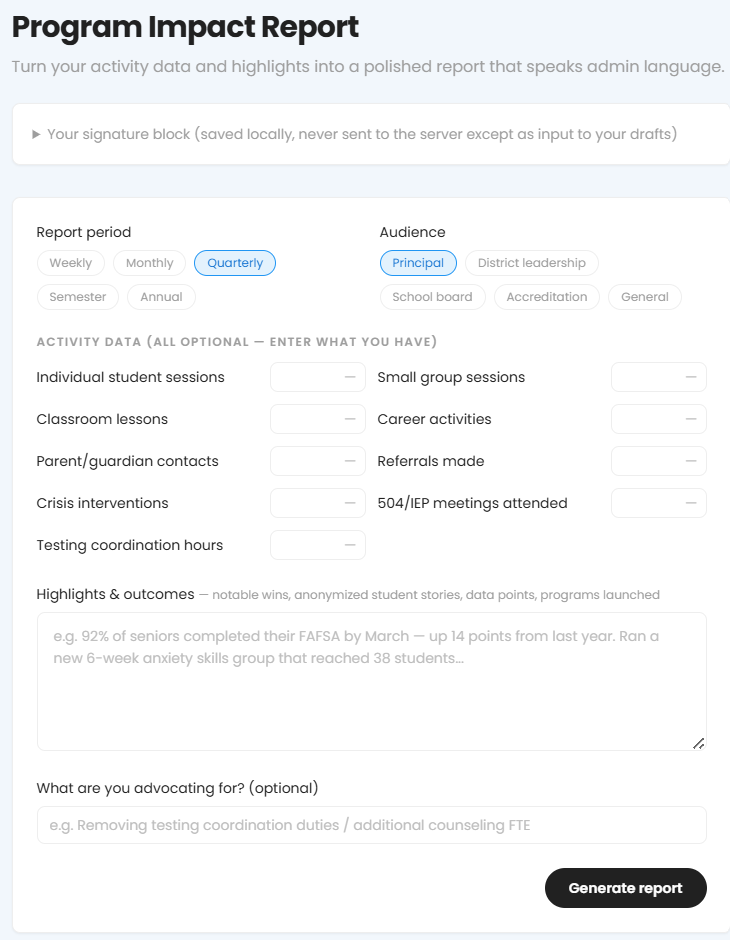
Turns your activity data and highlights into a polished report that speaks admin language.
The audience is its own setting here, since a principal and a school board don't read the same report.
How to use it
- Choose a report period: Weekly, Monthly, Quarterly, Semester, or Annual.
- Choose an audience: Principal, District leadership, School board, Accreditation, or General.
- Enter whatever activity numbers you have (all optional).
- Add highlights and outcomes in plain language.
- Optionally, state what you're advocating for; this gets built directly into the report.
- Generate.
Write a Letter of Recommendation
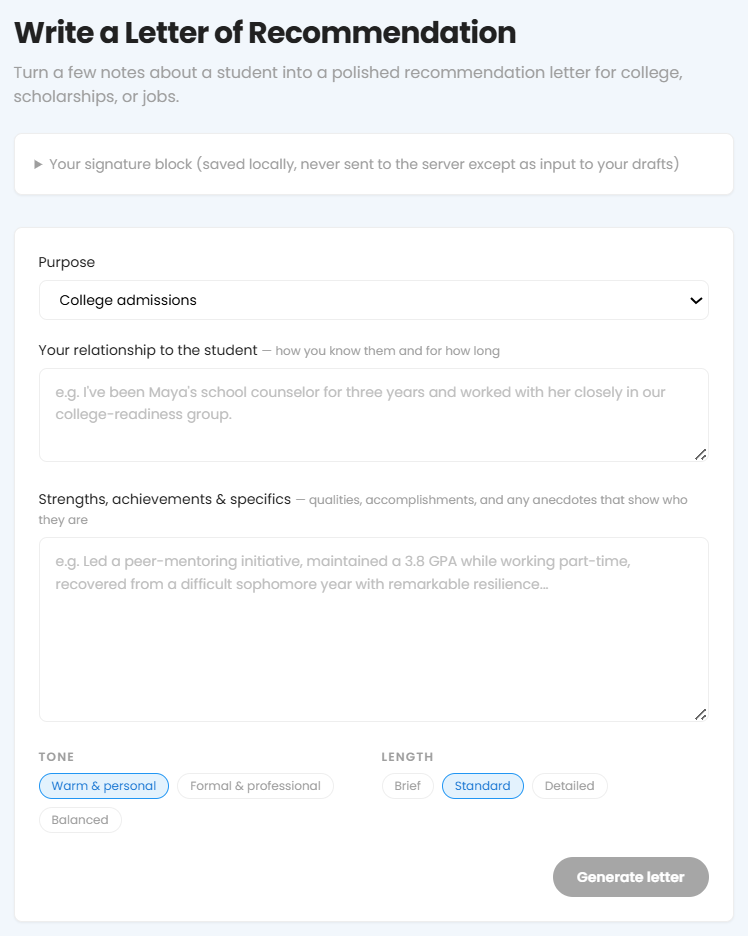
Turns a few notes about a student into a polished recommendation letter for college, scholarships, or jobs.
The more specific the notes, the more specific the letter is, so it doesn't read like a template.
How to use it
- Choose a purpose: College admissions, Scholarship, Job/employment, Internship, Summer or enrichment program, or General.
- Enter notes in plain language, a project, a GPA, or something the student overcame.
- Choose a tone: Warm & personal, Formal & professional, or Balanced.
- Choose a length: Brief, Standard, or Detailed.
- Generate.
After generating a draft from any of these six tools, you'll often be prompted to log time against it, which sends the entry straight to your Activity Tracker.
Before anything goes out
Using AI in Counselor Center
None of these should go out unread. Confirm names, dates, and anything the tool may have generalized.
- Student names: how a draft handles a name depends on how you typed it. Notes written with initials tend to come back redacted. Notes written with a first name tend to keep that name as written.
- If a draft won't generate, try again in a few minutes before assuming something's broken.
- If the tone feels off for a sensitive situation, rewrite the parts that matter most in your own words.
Was this article helpful?
Thanks for letting us know!

Keep exploring.
Can't find what you need?
Our support team is here to help you make the most of Pathful.